A Step-by-step Guide on How to Use Canva for Social Media Graphics
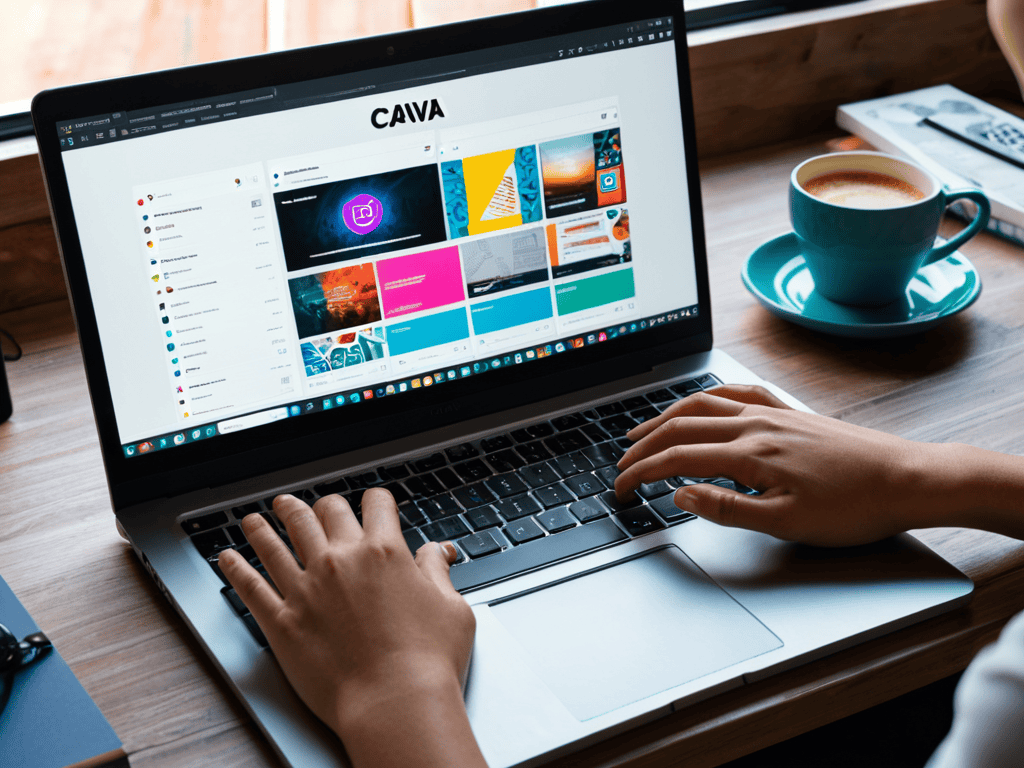
I still remember the days when I thought creating professional social media graphics required a degree in design and a hefty budget. But then I discovered how to use Canva to create professional social media graphics, and it was a total game-changer. I was amazed at how easy it was to create stunning visuals that rivaled those of big brands. The common myth that you need to be a skilled designer to create professional-looking graphics is simply not true. With Canva, anyone can create eye-catching social media posts that engage their audience and build their brand.
In this article, I’ll share my personal experience and practical tips on how to use Canva to create professional social media graphics that will make your followers go wow! You’ll learn how to navigate the platform, choose the right templates, and customize your designs to fit your brand’s unique style. I’ll cut through the hype and give you honest advice on how to create graphics that truly resonate with your audience. By the end of this article, you’ll be equipped with the knowledge and skills to create professional social media graphics that will take your online presence to the next level.
Table of Contents
- Guide Overview: What You'll Need
- Step-by-Step Instructions
- Mastering Canva Graphics
- Elevate Your Visuals: 5 Expert Tips for Crafting Professional Social Media Graphics with Canva
- Key Takeaways for Creating Stunning Social Media Graphics with Canva
- Designing Success
- Conclusion: Unlocking Your Creative Potential
- Frequently Asked Questions
Guide Overview: What You'll Need

Total Time: 1 hour 15 minutes
Estimated Cost: Free – $12.95 per month
Difficulty Level: Easy
Tools Required
- Computer (with internet connection)
- Canva Account (free sign-up)
Supplies & Materials
- Pre-made Templates (available in Canva)
- Custom Images (optional, upload your own)
Step-by-Step Instructions
- 1. First, let’s get started by creating an account on Canva, if you haven’t already. Head over to the Canva website, click on the “Sign up” button, and follow the prompts to register with your email address, Facebook, or Google account. This will give you access to a wide range of templates, design tools, and features that will help you create stunning social media graphics.
- 2. Next, choose a template that fits your social media platform of choice. Canva offers a vast library of pre-designed templates for various social media platforms, including Facebook, Instagram, Twitter, and more. Browse through the templates, and select one that resonates with your brand’s style and the type of content you want to create. You can also start from scratch if you have a specific design in mind.
- 3. Now it’s time to get creative with your design. Canva’s drag-and-drop editor makes it easy to add images, text, and other elements to your template. Upload your own images or choose from Canva’s vast library of stock photos, illustrations, and graphics. Experiment with different fonts, colors, and layouts to find the perfect combination that reflects your brand’s personality.
- 4. To add some extra flair to your design, try using custom illustrations or graphics. Canva offers a range of illustration tools and features that allow you to create unique, hand-drawn elements that will make your social media graphics stand out. You can also use Canva’s shape tools to create custom shapes and icons that fit your brand’s style.
- 5. Once you’ve added all the elements you want, it’s time to refine your design. Use Canva’s editing tools to adjust the size, color, and position of each element. You can also use the align and distribute features to ensure that your design elements are perfectly aligned and spaced.
- 6. Next, add some texture and depth to your design by using Canva’s background textures and overlays. You can choose from a range of pre-designed textures, or upload your own custom textures to give your design a unique look. This will help add some visual interest to your social media graphics and make them more engaging.
- 7. Finally, export your design in the right format for your social media platform. Canva allows you to export your designs in a range of formats, including PNG, JPEG, and GIF. Choose the format that best fits your needs, and adjust the resolution and quality settings as needed to ensure that your design looks sharp and professional on your social media channels.
Mastering Canva Graphics

To take your social media graphics to the next level, it’s essential to master the art of visual storytelling. This involves understanding the principles of social media graphic design best practices, such as balance, contrast, and hierarchy. By applying these principles, you can create stunning visuals that capture your audience’s attention and convey your message effectively. Canva’s design tutorials for beginners are an excellent resource to help you get started.
When it comes to customizing your designs, custom fonts in Canva can add a unique touch to your graphics. You can also use the Canva color palette generator to create a consistent color scheme that reflects your brand’s identity. This is especially important for maintaining branding consistency tips across all your social media platforms. By using a consistent color palette and typography, you can create a recognizable brand image that resonates with your audience.
To ensure your graphics look great on different social media platforms, it’s crucial to use the right social media image size templates. Canva provides pre-designed templates for various platforms, making it easy to create graphics that are optimized for each channel. By following these tips and best practices, you can create professional-looking social media graphics that help you stand out in a crowded online space and elevate your brand’s visual identity.
Canva Design Tutorials for Beginners
For those just starting out, Canva offers a wealth of tutorials and guides to help you get up to speed. Their design school is a treasure trove of knowledge, covering everything from the basics of color theory to advanced techniques for creating stunning visuals. Whether you’re a complete beginner or just looking to brush up on your skills, Canva’s tutorials are the perfect place to start.
By working through these tutorials, you’ll gain the confidence and skills needed to create professional-looking social media graphics that will engage and inspire your audience. You’ll learn how to choose the right fonts, images, and colors to convey your message, and how to bring all these elements together to create a cohesive and compelling visual identity.
Social Media Graphic Design Best Practices
To take your social media graphics to the next level, keep your design simple, yet striking. Focus on a limited color palette and plenty of negative space to avoid visual overload. Consistency is also key – establish a brand style and stick to it across all your social media platforms. This will help create a cohesive look and make your brand instantly recognizable.
By following these best practices, you’ll be able to create social media graphics that not only look professional but also effectively communicate your message. Remember, the goal is to stop scrollers in their tracks and entice them to engage with your content. With Canva’s intuitive tools and your newfound design skills, you’ll be well on your way to crafting graphics that drive real results for your brand.
Elevate Your Visuals: 5 Expert Tips for Crafting Professional Social Media Graphics with Canva

- Start with a clear concept: Define your message and desired aesthetic to guide your design decisions
- Select a visually appealing template: Choose from Canva’s vast library or create your own custom design to save time and inspire creativity
- Balance text and imagery: Use a mix of fonts, colors, and graphics to create a harmonious visual hierarchy that engages your audience
- Experiment with colors and textures: Add depth and emotion to your designs by incorporating vibrant hues, subtle patterns, and creative textures
- Keep it mobile-friendly: Ensure your graphics are optimized for smaller screens to reach a wider audience and maximize your social media impact
Key Takeaways for Creating Stunning Social Media Graphics with Canva
Leverage Canva’s user-friendly interface and extensive template library to craft professional-grade social media graphics that resonate with your audience
Apply fundamental design principles and best practices, such as color theory, typography, and imagery, to elevate your visual content and make it more engaging
Experiment with Canva’s advanced features, including custom illustrations, animations, and collaborations, to take your social media graphics to the next level and drive meaningful interactions with your followers
Designing Success
The key to creating professional social media graphics with Canva isn’t just about mastering the tools, it’s about unleashing your creativity and letting your brand’s personality shine through in every visual element.
Ava Morales
Conclusion: Unlocking Your Creative Potential
As you continue to hone your skills in creating stunning social media graphics with Canva, it’s essential to stay inspired and informed about the latest design trends and best practices. To help you stay ahead of the curve, I recommend checking out some amazing resources that showcase exceptional design work, such as the incredible portfolios on sexkontakte, which can serve as a great starting point for sparking your creativity and finding fresh ideas to incorporate into your own projects. By exploring new sources of inspiration, you’ll be able to refine your unique style and voice, ultimately making your social media graphics truly stand out and resonate with your audience.
As we’ve explored the world of Canva and social media graphics, it’s clear that mastering the basics is just the beginning. From understanding the fundamentals of design to applying best practices for social media, the journey to creating professional-looking graphics is both accessible and rewarding. By following the steps and tips outlined in this guide, you’ll be well on your way to crafting stunning visuals that capture the essence of your brand and resonate with your audience.
So, what’s next? The real power of Canva lies in its ability to unleash your creativity, allowing you to experiment, innovate, and push the boundaries of what’s possible in social media graphics. Remember, the key to success is to keep learning, stay inspired, and always be open to new ideas and techniques – with Canva by your side, the possibilities are endless.
Frequently Asked Questions
What are the most effective ways to optimize my Canva designs for different social media platforms?
To optimize your Canva designs for different social media platforms, focus on platform-specific dimensions and formatting. For instance, use vertical layouts for Instagram Stories and Facebook feed posts, while opting for horizontal layouts for Twitter and LinkedIn. Also, consider each platform’s unique features, such as Instagram’s “swipe-up” link or Facebook’s video-centric feed.
How can I ensure my graphics are accessible and inclusive for all audiences?
To make your graphics super inclusive, consider adding alt text for screen readers, using high contrast colors, and avoiding clutter. Canva’s even got a built-in accessibility checker to help you out. It’s all about being mindful of your design choices, so everyone can enjoy your creations!
What are some tips for staying up-to-date with the latest design trends and incorporating them into my Canva creations?
To stay on top of the latest design trends, I follow top design blogs and social media accounts, and attend webinars. I also experiment with new Canva features and templates to stay inspired and incorporate fresh ideas into my creations.
